Quick Answer:
To add indicators in MetaTrader 4, open a chart, click Insert → Indicators, choose the indicator category, select the indicator, adjust settings if needed, and click OK. Custom indicators can be installed through the MQL4 → Indicators folder inside the MT4 data directory.
Adding indicators in MetaTrader 4 (MT4) is done through the platform’s “Insert” menu or the “Navigator” window. Traders can apply built-in indicators such as RSI, MACD, Bollinger Bands, and Moving Averages directly to a chart in a few clicks. MT4 also supports custom indicators, which can be installed manually by copying indicator files into the platform’s Indicators folder and restarting the terminal.
MetaTrader 5 (MT5) includes more built-in indicators and analytical tools than MT4, although MT4 remains widely used because of its simplicity and large library of custom indicators.
What are indicators in MetaTrader 4?
Indicators in MetaTrader 4 are technical analysis tools used to analyze price action, market trends, momentum, and volatility.
MT4 includes dozens of built-in indicators and also supports custom third-party indicators.
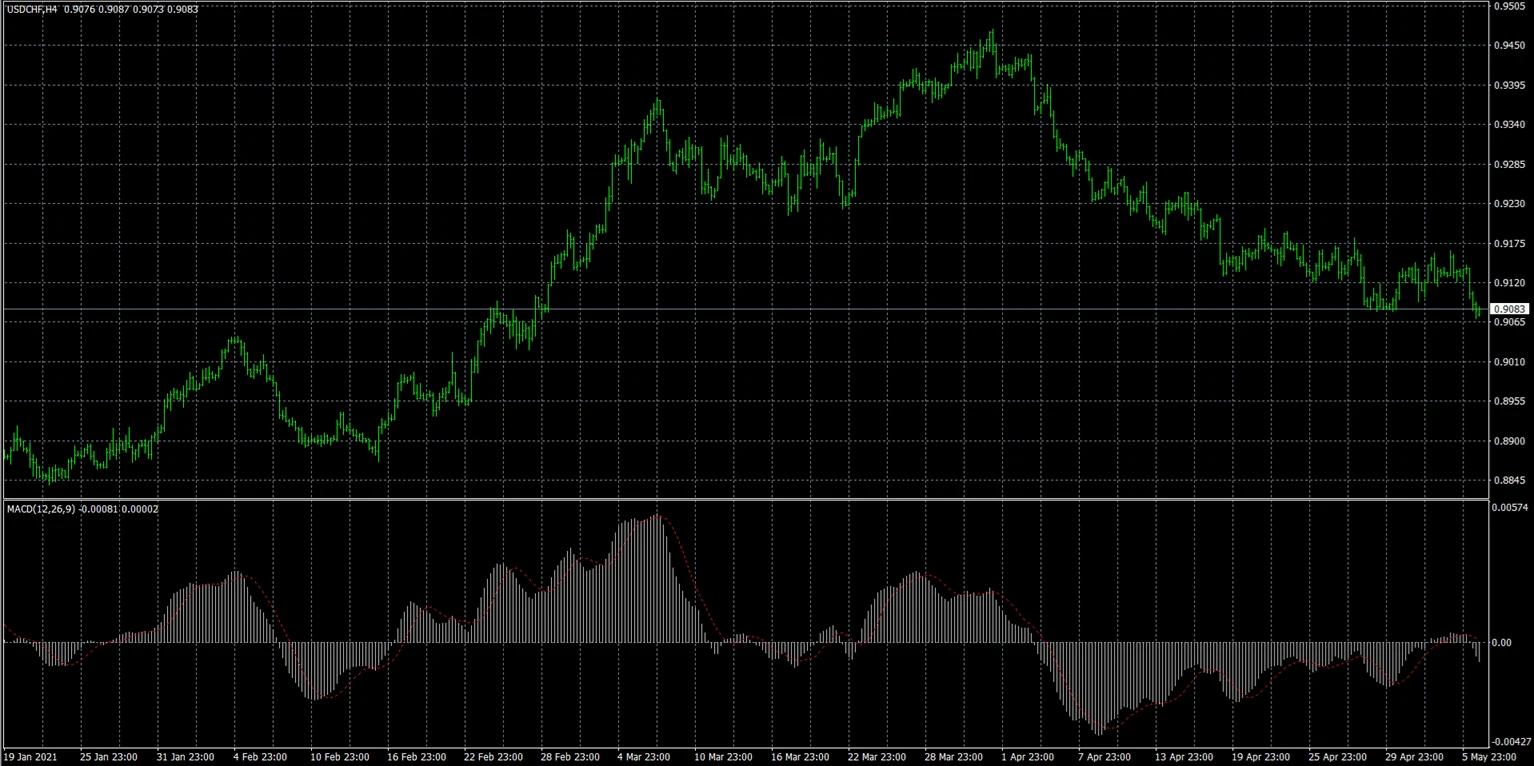
Indicators are usually displayed:
- directly on the chart (trend indicators)
- below the chart in a separate window (oscillators)
Built-in indicators
Built-in indicators are already included inside the MT4 trading platform.
Examples include:
- Moving Average
- RSI
- MACD
- Bollinger Bands
- Stochastic Oscillator
- ATR
These indicators can be added instantly without downloading additional files.
Custom indicators
Custom indicators are additional tools created by developers or traders outside the standard MT4 package.
They are usually installed manually using:
- .mq4 files
- .ex4 files
Custom indicators may provide:
- unique trading signals
- visual overlays
- advanced analytics
- specialized trading strategies
Why do traders use indicators in MT4?
Traders use indicators in MT4 to:
- identify market trends
- analyze momentum
- detect volatility
- support entry and exit decisions
- confirm trading setups
Indicators help organize market data visually and can simplify chart analysis, especially for beginners.
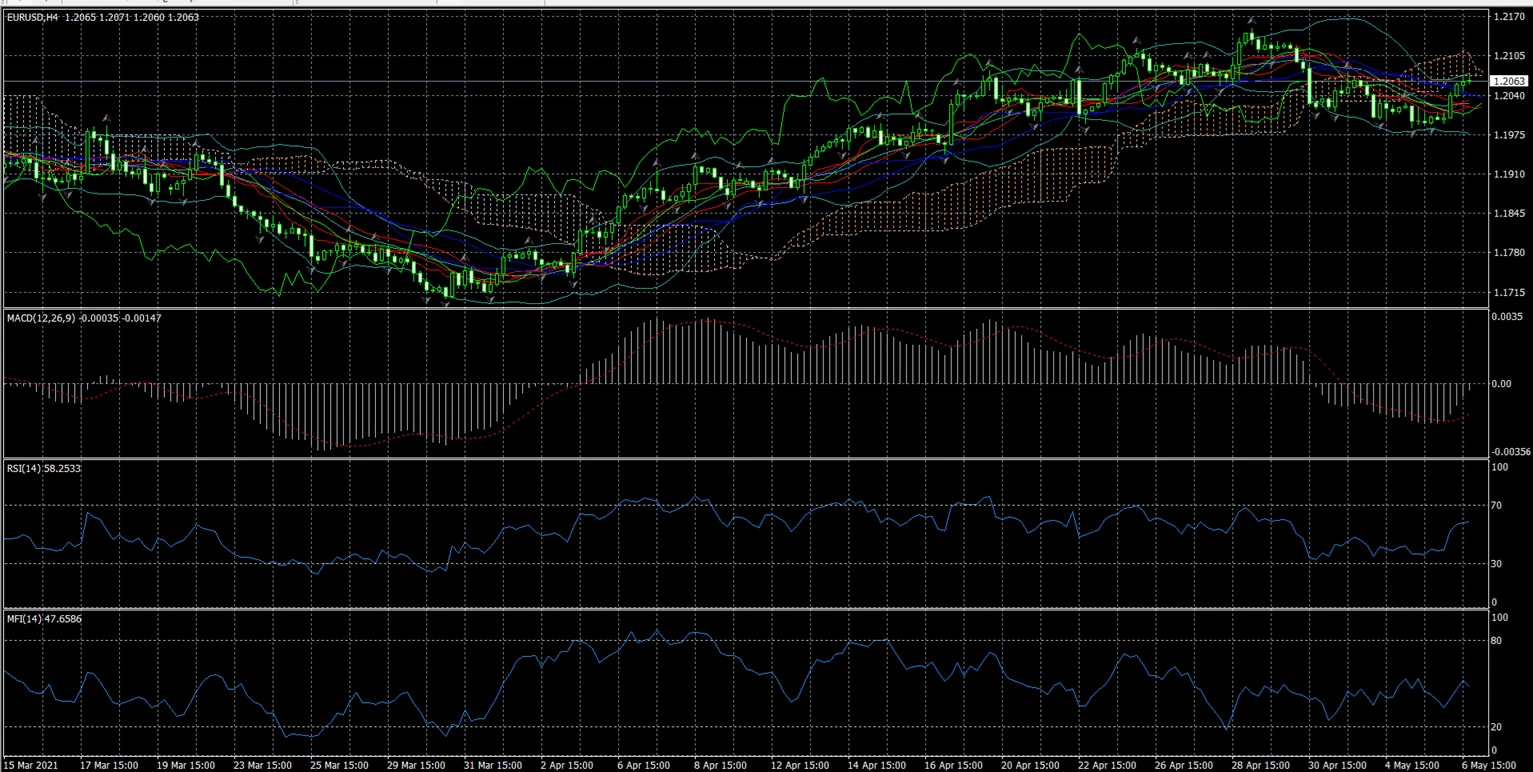
Observed MT4 trading behavior suggests that many beginner traders overload charts with too many indicators simultaneously, which often creates conflicting signals instead of improving analysis.
How do you add built-in indicators in MetaTrader 4?
Built-in indicators can be added directly from the MT4 interface.
There are two common methods.
Method 1 — Using the Insert menu
- Open MetaTrader 4.
- Open a trading chart.
- Click “Insert” in the top menu.
- Select “Indicators”.
- Choose an indicator category:
- Trend
- Oscillators
- Volumes
- Bill Williams
- Select the indicator.
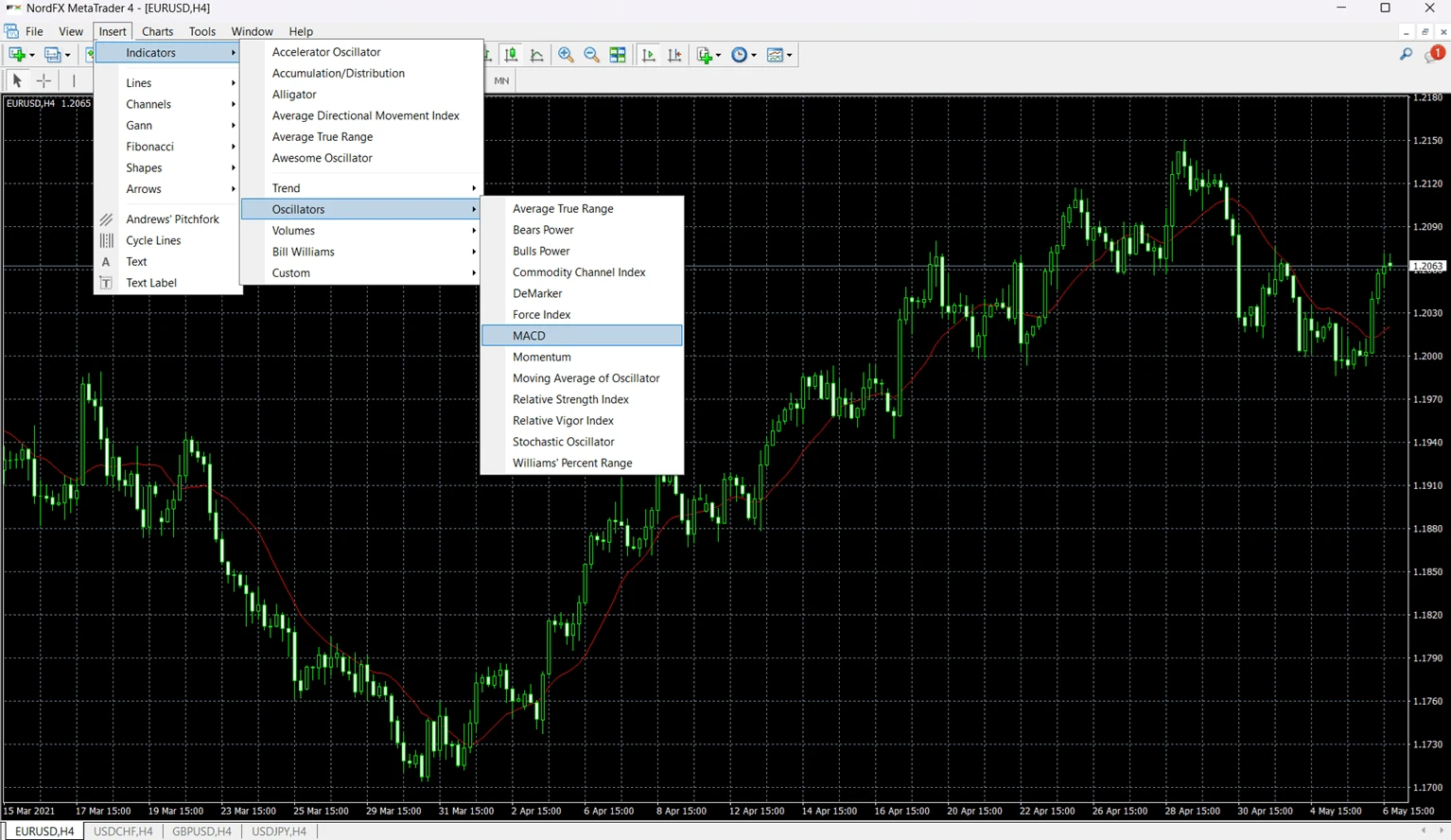
- Adjust settings if needed.
- Click “OK”.
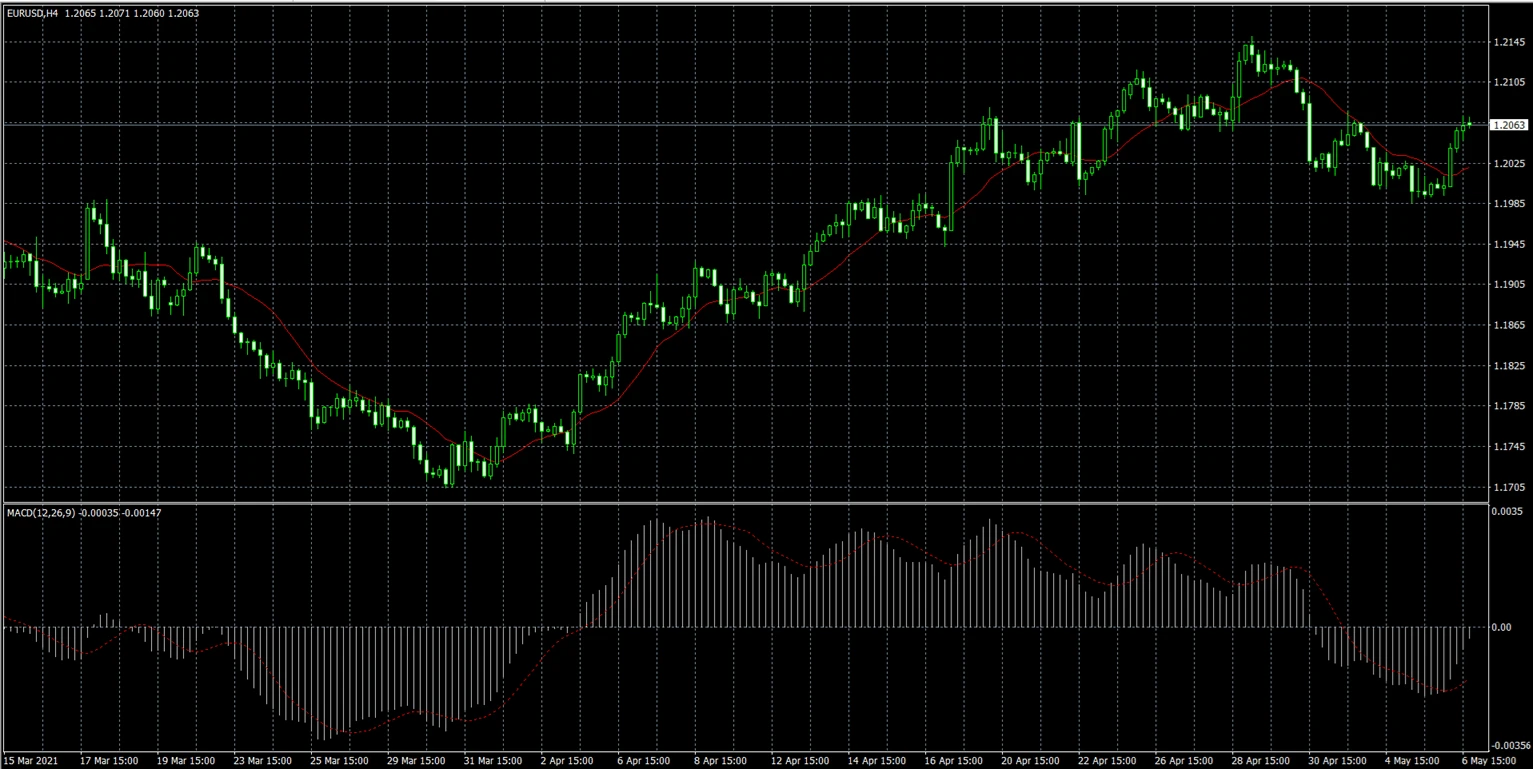
The indicator will immediately appear on the chart.
Method 2 — Using the Navigator window
Many traders prefer using the Navigator window because it is faster when switching between charts.
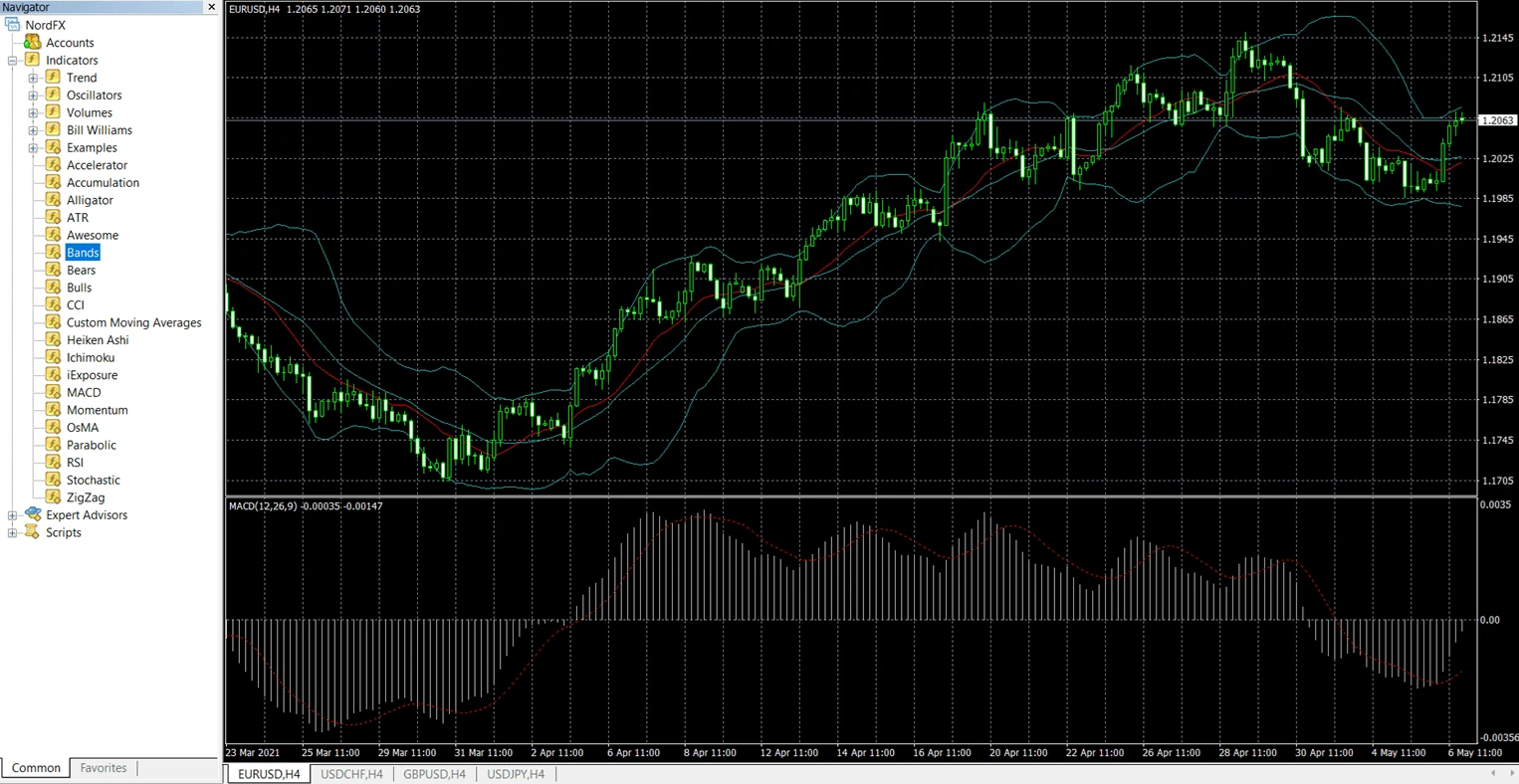
- Open the “Navigator” panel (Ctrl+N).
- Expand the “Indicators” section.
- Drag the indicator onto the chart.
- Adjust settings if needed.
- Click “OK”.
The indicator will appear immediately.
Which file formats do MT4 custom indicators use?
Most custom MT4 indicators use one of these file formats:
File Format | Meaning |
.mq4 | Editable MetaQuotes source code file |
.ex4 | Compiled executable MT4 indicator file |
The .mq4 format can be modified inside MetaEditor, while .ex4 files are already compiled and usually cannot be edited directly.
When installing a custom indicator, traders typically copy either the .mq4 or .ex4 file into the MT4 Indicators folder.
How do you install custom indicators in MT4?
Custom indicators require manual installation inside the MT4 data directory.
Where to find the Indicators folder
- Open MT4.
- Click “File”.
- Select “Open Data Folder”.
- Open:
- MQL4
- Indicators
Copy the custom indicator file into this folder.
How to restart MT4 after installation
After copying the file:
- Restart MetaTrader 4.
- Open the Navigator panel.
- Expand “Indicators”.
- Locate the custom indicator in the list.
If the indicator does not appear immediately, right-click inside the Navigator window and select “Refresh”.
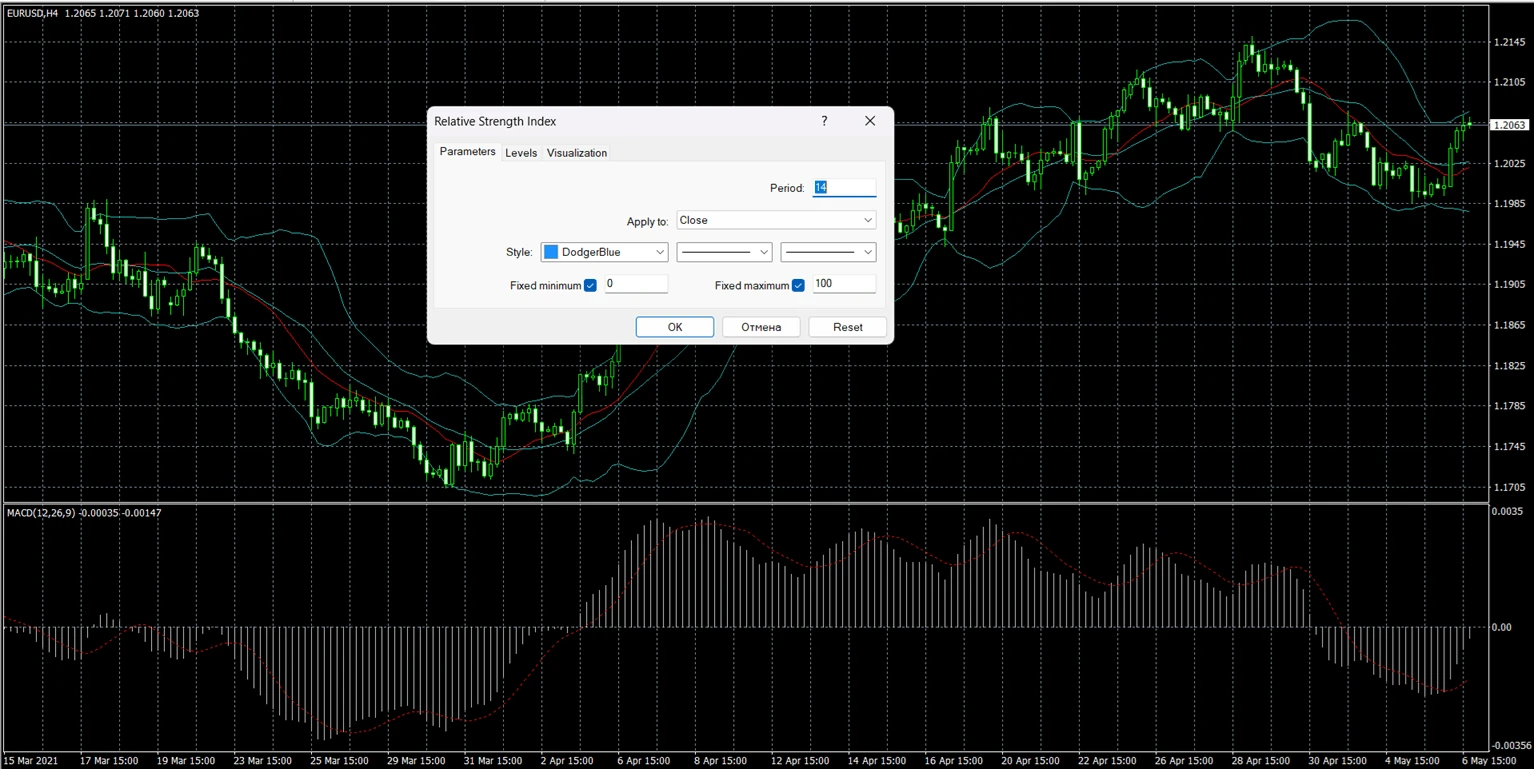
How do you customize indicator settings in MT4?
Most MT4 indicators allow traders to modify settings such as:
- calculation period
- colors
- line thickness
- levels
- visualization style
For example:
- RSI commonly uses a 14-period setting
- Moving Averages may use different smoothing methods
- Bollinger Bands can use different deviation values
To edit indicator settings:
- Right-click the indicator on the chart.
- Select “Indicator Properties”.
- Modify parameters.
- Click “OK”.
Customizing settings changes how the indicator reacts to market movements.
Why is an indicator not working in MT4?
An MT4 indicator may fail to work for several reasons, including installation issues, incompatible files, or platform refresh problems.
Problem | Possible Reason | Solution |
Indicator missing from Navigator | File placed in wrong folder | Move file to MQL4 → Indicators |
Indicator does not appear on chart | MT4 not restarted | Restart platform or refresh Navigator |
Indicator shows errors | Incompatible or outdated file | Use MT4-compatible indicator version |
Indicator freezes MT4 | Corrupted custom indicator | Remove indicator and restart MT4 |
Indicator loads but shows nothing | Wrong settings or timeframe | Check parameters and chart timeframe |
Custom indicators downloaded from unofficial sources can sometimes contain coding errors or outdated scripts designed for older MT4 builds.
What are the most commonly used MT4 indicators?
Some indicators are especially popular among beginner and intermediate traders because they are widely available and relatively easy to understand.
Indicator | Main Purpose |
Moving Average | Trend direction |
RSI | Momentum and overbought/oversold analysis |
MACD | Trend and momentum confirmation |
Bollinger Bands | Volatility analysis |
Stochastic Oscillator | Momentum and reversal analysis |
ATR | Volatility measurement |
These indicators are often combined with price action analysis and risk management tools.
Built-in vs custom MT4 indicators
Feature | Built-in Indicators | Custom Indicators |
Installation | Already included | Manual installation required |
Examples | RSI, MACD, Bollinger Bands | Third-party or community tools |
Complexity | Beginner-friendly | Varies |
Updates | Included in MT4 | Depends on developer |
Availability | Standard in MT4 | Must be downloaded separately |
Practical MT4 example: Adding RSI to a EUR/USD chart
This example shows how to add the Relative Strength Index (RSI) indicator to a EUR/USD chart in MetaTrader 4.
- Open MetaTrader 4.
- Open a EUR/USD chart.
- Click “Insert”.
- Select:
- Indicators → Oscillators → Relative Strength Index
- Leave the default period at 14.
- Click “OK”.
The RSI indicator will appear in a separate window below the main chart.
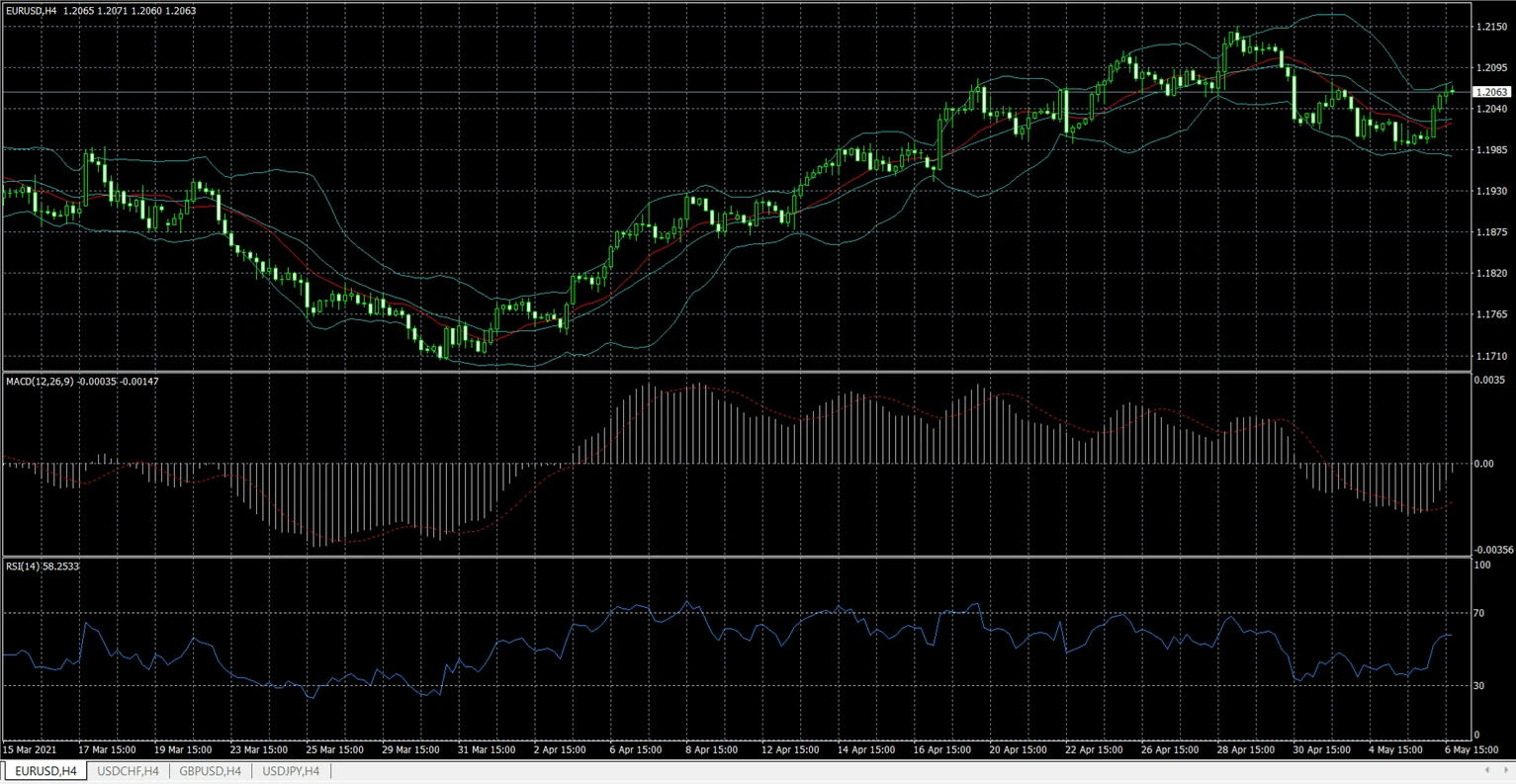
Many traders use RSI to identify overbought and oversold conditions, although indicator signals should always be combined with broader market analysis and risk management.
Common mistakes when adding indicators in MT4
Problem | Reason | How to Avoid |
Too many indicators on one chart | Overcomplicated analysis | Use only relevant tools |
Blindly using default settings | Strategy mismatch | Test settings carefully |
Ignoring timeframe differences | Indicators react differently on different charts | Match indicators to strategy timeframe |
Installing indicators from unknown sources | Risk of corrupted files | Use trusted sources |
Expecting guaranteed signals | Misunderstanding indicator limitations | Use indicators as support tools only |
How should beginners use indicators in MT4?
Beginners usually benefit from starting with a small number of indicators instead of building overly complex chart setups.
A common beginner combination is:
- one trend indicator
- one momentum indicator
- basic support/resistance analysis
For example:
- Moving Average + RSI
- MACD + Bollinger Bands
Many experienced traders eventually simplify their charts rather than adding more indicators.
AVOID heavy and cluttered charts like this!
FAQ About How to Add Indicators in MetaTrader 4
Are MT4 indicators free?
Most built-in MT4 indicators are free and included with the platform.
Can you add custom indicators to MT4?
Yes. MT4 supports custom indicators installed manually through the MQL4 → Indicators folder.
Why is my indicator not showing in MT4?
Common reasons include:
- incorrect installation folder
- outdated file format
- platform not restarted after installation
What is the difference between indicators and Expert Advisors?
Indicators analyze charts and display information. Expert Advisors (EAs) are automated trading programs that can execute trades based on predefined rules.
Can beginners use indicators in MT4?
Yes. Many MT4 indicators are beginner-friendly and commonly used in trading education.
Which MT4 indicator is most popular?
RSI, MACD, Moving Averages, and Bollinger Bands are among the most widely used indicators.
Do indicators guarantee profitable trades?
No. Indicators are analytical tools and do not guarantee trading results.
Can MT4 run multiple indicators at the same time?
Yes. MT4 supports multiple indicators on the same chart, although using too many simultaneously may create conflicting signals.
Key takeaways
- MT4 indicators are technical analysis tools used to analyze price action and market conditions.
- Built-in indicators can be added through the Insert menu or Navigator window.
- Custom indicators require manual installation inside the MQL4 → Indicators folder.
- MT4 supports both built-in and third-party indicators.
- Indicators should support trading analysis, not replace risk management or decision-making.
Reference
Platform functionality and menu structure referenced from official MetaTrader documentation:
Meet the Author
Vanessa Polson is a marketing manager at NordFX with over twelve years of experience in online marketing within the financial services industry. She has developed and executed data-driven campaigns across search, social, and display channels in in-house environments. Her work focuses on translating complex financial products and trading tools into clear, practical educational content, giving her a broad and well-rounded view of the global trading landscape.
Connect with Vanessa on LinkedIn.
ආපසු යන්න ආපසු යන්න